


.png)


 Call Us
If you’re a small business owner, or work for a small business, you're probably wondering how to get your business on Google. First thing’s first: you need to get a business Google+ page, ASAP! If you don’t already have a verified Google+ page for your business, creating a page and getting it verified can be a bit tricky. Over the years, Google has developed multiple different steps and guidelines you have to follow in order to get your business’ Google+ page verified on Google. So to make it easy, we’re going to break it down for you to make this process as simple and clear as possible so customers can find your business and all your information on Google in no time.
Step 1: Creating Your Google+ Page
For those of you who don’t know much about creating Google+ pages, that's okay, we were all there at some point. Before you begin creating your Google+ page, there’s one thing you’ll need to clarify: is your business a storefront, service area, or a brand? Deciding your business type will determine which type of Google+ page you will need to create for your business.
What type of page should I create for my business?
Below are a few examples of each business type to help you figure out which one your business falls under.
- Storefronts - Restaurants, Retail stores, Hotels
- Service Area - Plumber, Pizza delivery, Taxi Service
- Brands - Product, Sports team, Music band, Cause
Once you’ve determined your business type, you’ll want to follow the steps Google takes you through to set up your page.
For storefronts and service area pages, Google will ask you to enter your business’ name and address to see if a page or profile is already set up for your business. If it turns up that a page has already been set up for your business, you’ll either want to try to figure out who is managing it, or report the page if you aren’t sure who created the page.
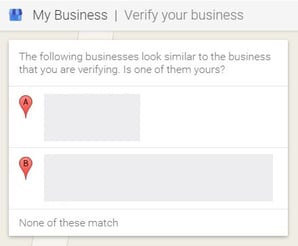
If your business appears in the search with the correct name and address you’ll have to confirm that you are authorized to manage the business page. To do this, Google will ask you to verify your association with the business by mailing you a verification code to your business’ address. This can take up to two weeks to receive the verification code. Once you receive the code in the mail you can then move forward with the verification process by entering the code on your business’ Google+ business page.
If your business doesn’t appear in the search Google will ask you to enter the full business details to your business. Once you’ve entered your information Google will set up a business page for you and ask you to verify that you are associated with this business by sending you a verification code in the mail to your address.
Step 2: Verifying Your Local Business Page
Having a verified local Google+ page not only lets others know that your page is actually managed by your business, but will also allow your business information to appear across Google, including Google Search, Maps, and mobile.
At this point, you’ve created your business’ Google+ page and filled out all of your business’ information (if you haven’t, then do it now!). Now, there are a few different ways for you to verify your page, depending on the type of business you are managing.

Verify by postcard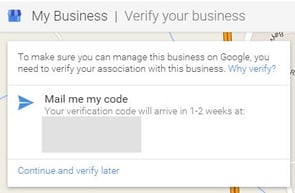
If you choose to verify your business page via postcard, you must follow these steps:
- Visit Google By Business, select the business you’d like the verify, and click Verify now.
- On the request for a postcard screen, check to see if your address is displayed correctly. You also can enter an Optional contact name to help your postcard reach you.
- Click Send postcard.
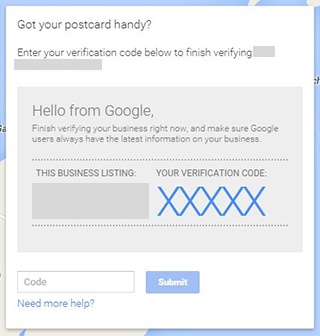
- Check your mail for the postcard -- it should take one to two weeks to arrive at your business’ address. When you receive your postcard, enter the verification code.

Verify by phone
Your business might not qualify for phone verification. If you don’t see it as an option when you try to verify then you will have to request a postcard instead, using the steps listed above.
- Visit Google By Business, select the business you’d like the verify, and click Verify now.
- Make sure you are available to directly answer your business phone number to receive your verification code.
- Click Verify by phone to have the code sent to your phone via automated message.
- Enter the verification code from the message into your page’s dashboard
Instant verification
Please note: some business categories may not be eligible for instant verification. You may be qualified for instant verification if you’ve already verified your business’s website with Google Webmaster Tools. To do this, sign in to Google My Business with the same account you used to verify your site with Webmaster Tools.
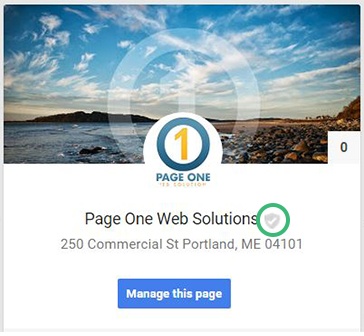
After all your hard work of getting you page setup and following the verification steps, there is no better feeling than seeing your business’ name with a shielded checkmark next to it, signifying that you officially have a verified Google+ Business page! Now, current and future customers of your products or services will be able to find your business and all it’s information in a simple Google search, including Google Maps.
You want to keep your Google+ profile up to date by adding regular content, images, and videos as well as by interacting with customers who review your site. Make the effort to add branding to the Google+ profile and show your customers what you're all about. Also, include external links to your website and other social media profiles. Really make your new Google+ profile robust because it will only help your placement in Google searches.
As mobile searches have skyrocketed over the past few years, having a Google+ page for your business has become necessary in being found in local searches. Luckily, in just a matter of minutes, you can step up this essential social profile (or tool) that helps you promote your business with little day-to-day upkeep.
Insights that drive informed decisions
Get practical frameworks, proven playbooks, and growth stories from teams building smarter systems.

The Content King Is Dead, Long Live Context
I spent three days at UNBOUND 26 about a month ago, and if I had a dollar for every time someone said "context," I...
.png?width=450&name=brand-announcement-lp%20(1).png)
Introducing GrowthTech Partners
Twenty years ago, I left a job at an industrial directory company with a simple observation: Google was about to change...

The New Era of Search: What GEO & AEO Mean for Modern...
We are in the midst of a shift from classic, keyword-driven SEO to generative engine optimization (GEO) and answer...